There are 3 steps
- Access your Ghost instance
- Basic Information About Ghost Config File
- Config Your
config.production.jsonFile.
Go the the google cloud platform and logging into exciting account.
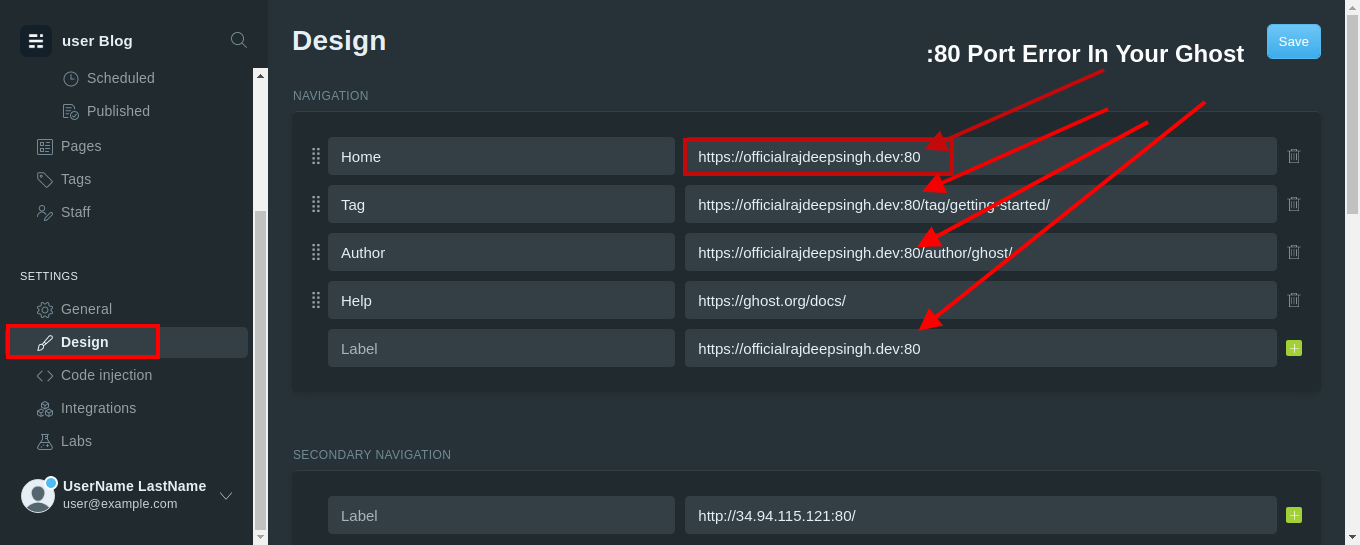
Access your Ghost instance
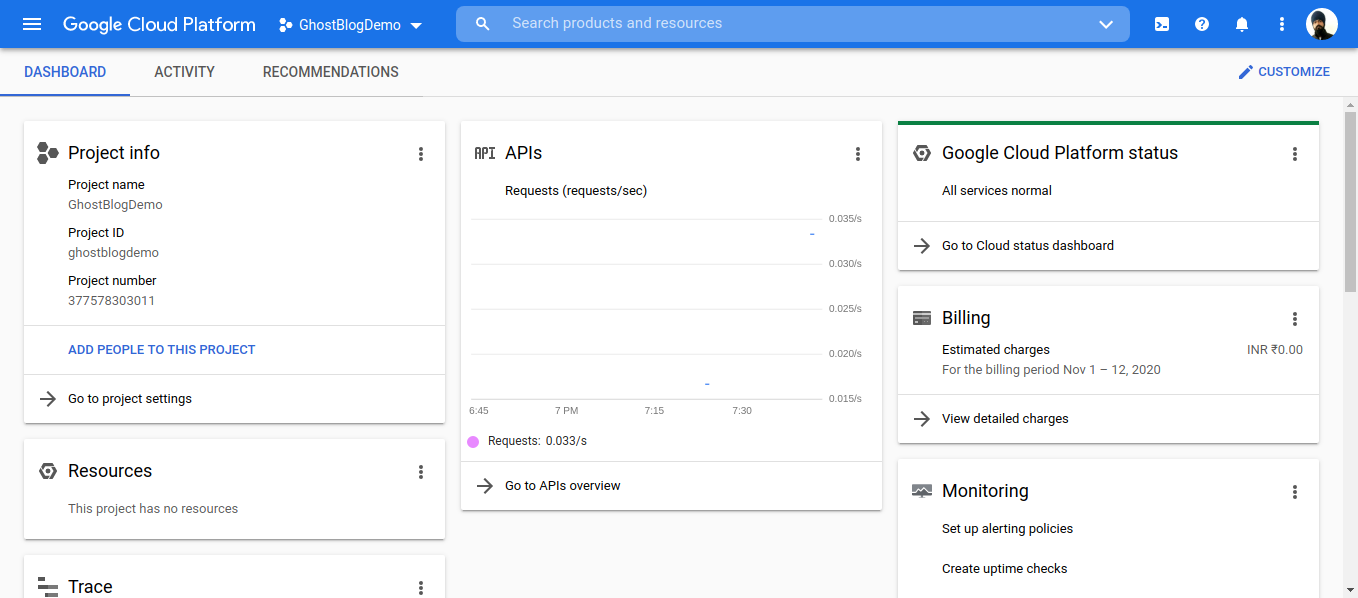
Open Your Google Console Dashboard
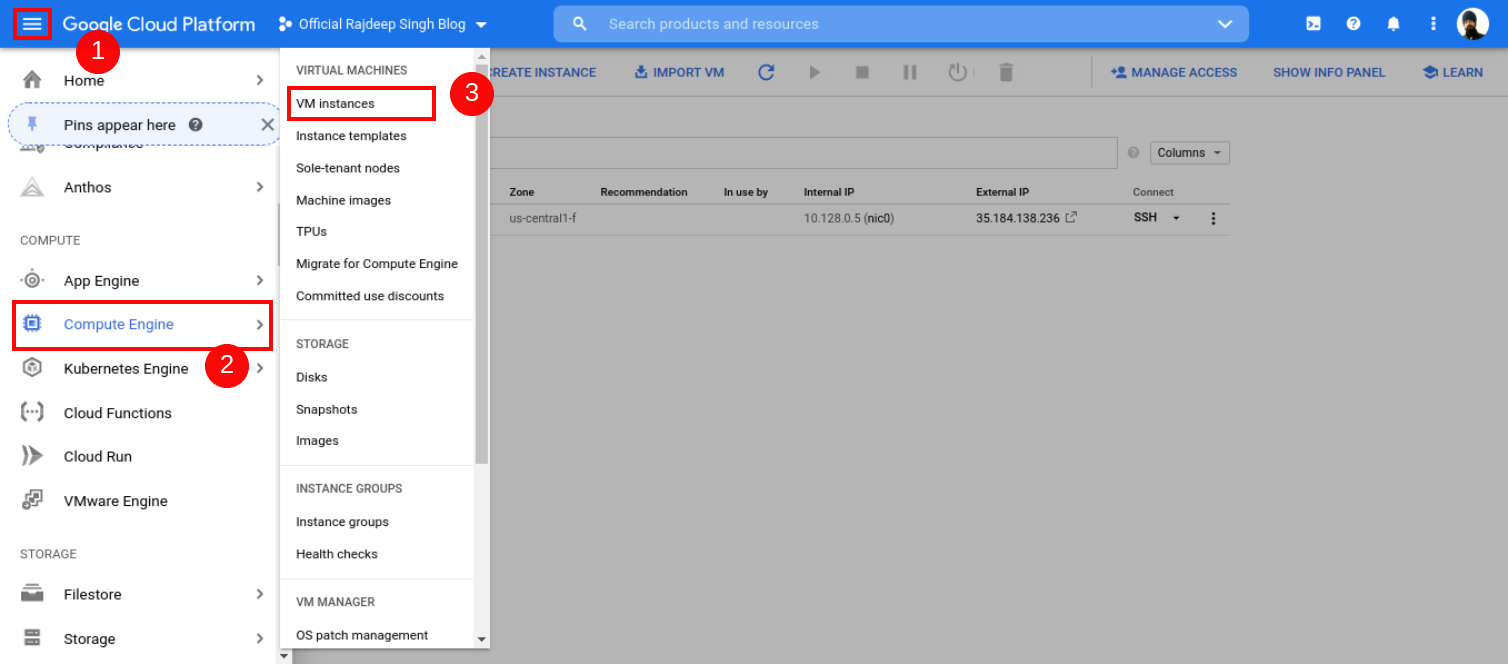
Open your Google Console Dashboard Then Click Top Left Conner humber icon. Click Compute Engine, Select VM Instance, Then Your VM Instance Page Open.
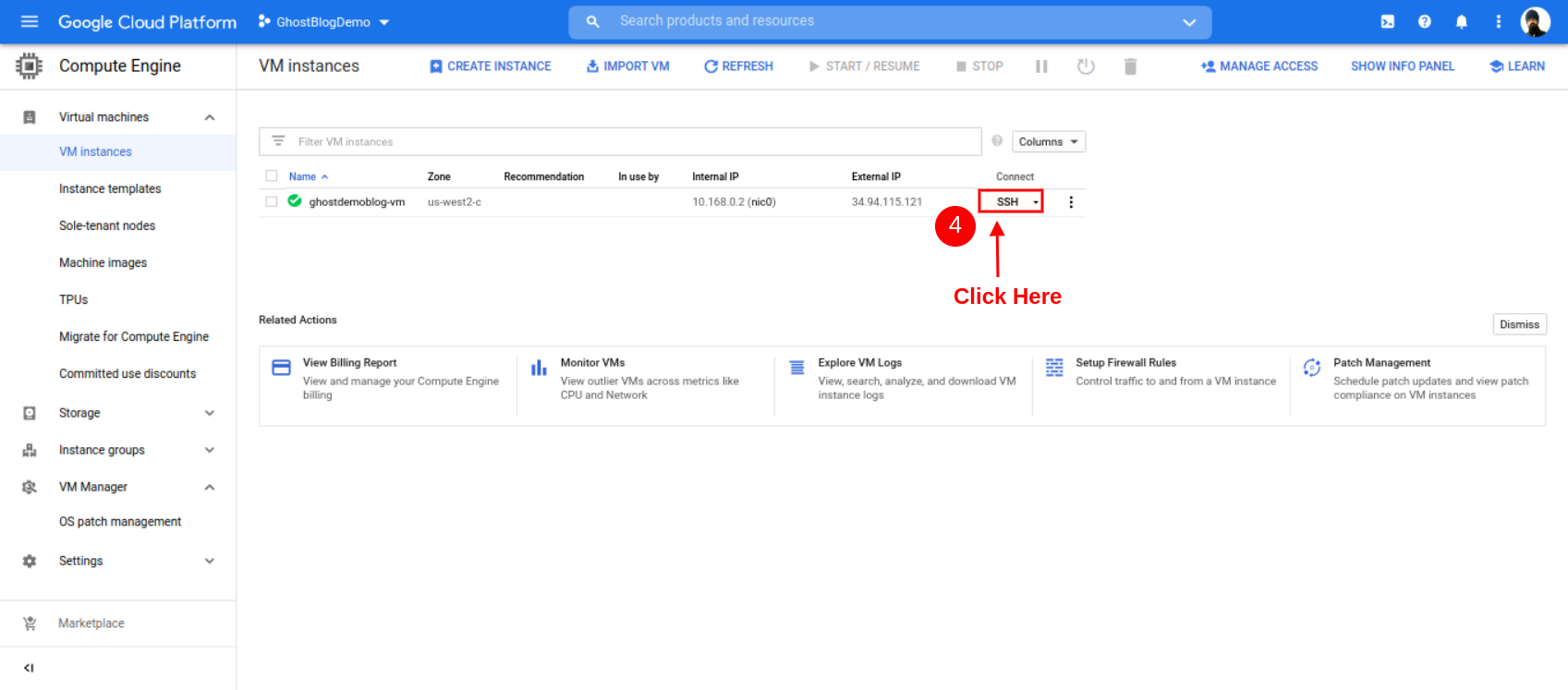
After the Open instance page, click SSH button.
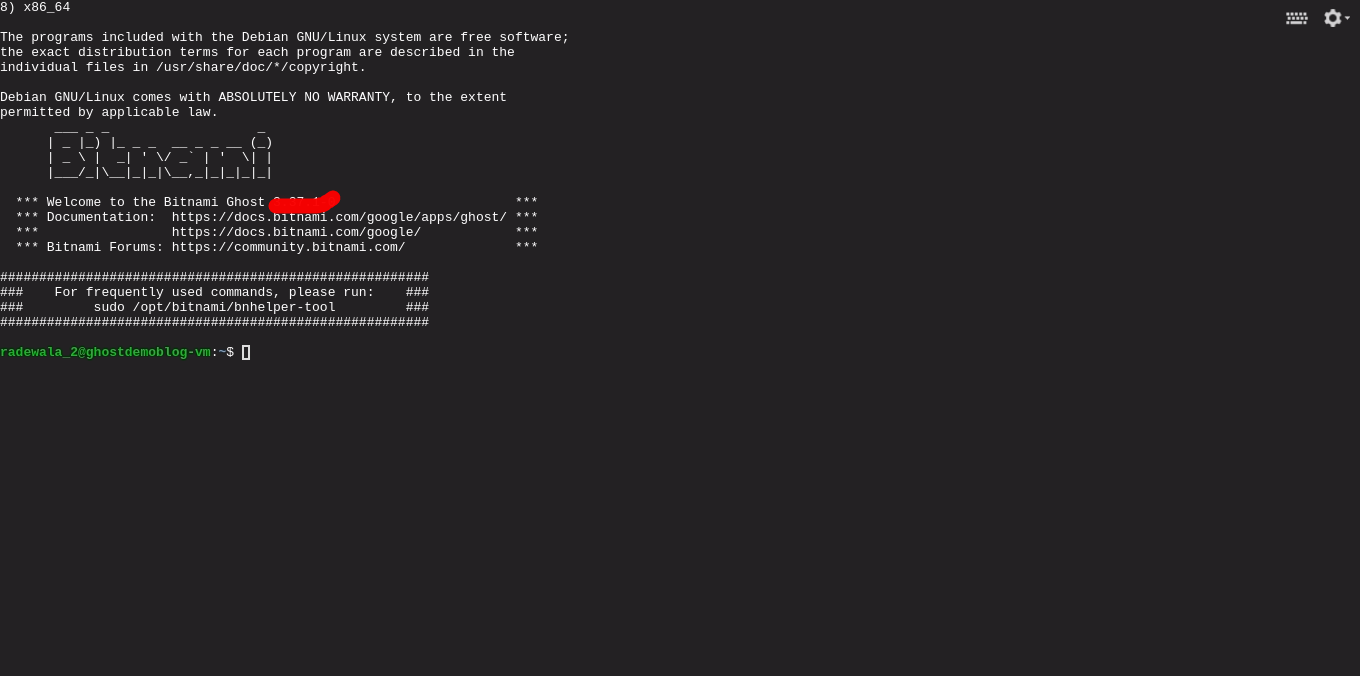
After Open Your Instance Page. Then Click SSH Button and You can see new Window open in bottom side and you see your SSH terminal Successfully Open.
Basic Information About Ghost Config File
The ghost requires the domain name to be specified in the /opt/bitnami/apps/ghost/htdocs/config.production.json file.
Check Your config file. Simple use the cat command inside ssh terminal.
sudo cat /opt/bitnami/apps/ghost/htdocs/config.production.json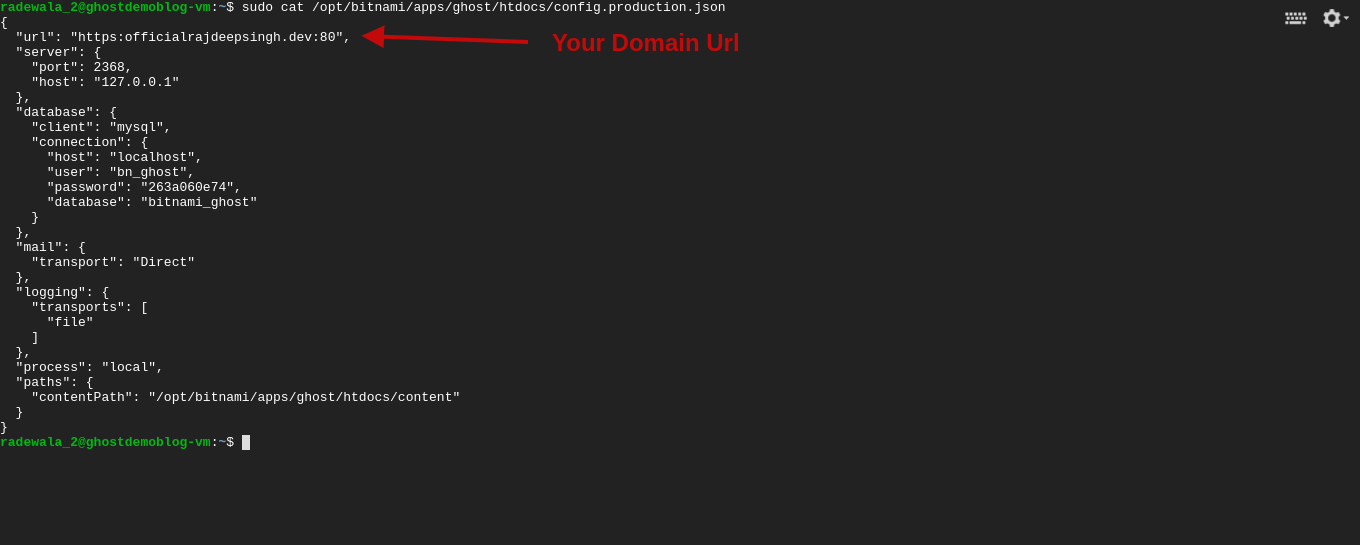
when you open config.production.json, your URL look like.
url: 'example.com:80'Config Your config.production.json File
Config the domain name in ghost cms. open your config Config.production.json file in side your terminal, use nano editor.
If Like nano Editor so paste following command in terminal. Other Wish You can use any other editor Like Vim
Config With Nano editor command (Recommended )
sudo nano /opt/bitnami/apps/ghost/htdocs/config.production.jsonConfig With Vim editor command
sudo Vim /opt/bitnami/apps/ghost/htdocs/config.production.jsonConfig With Nano CMD:
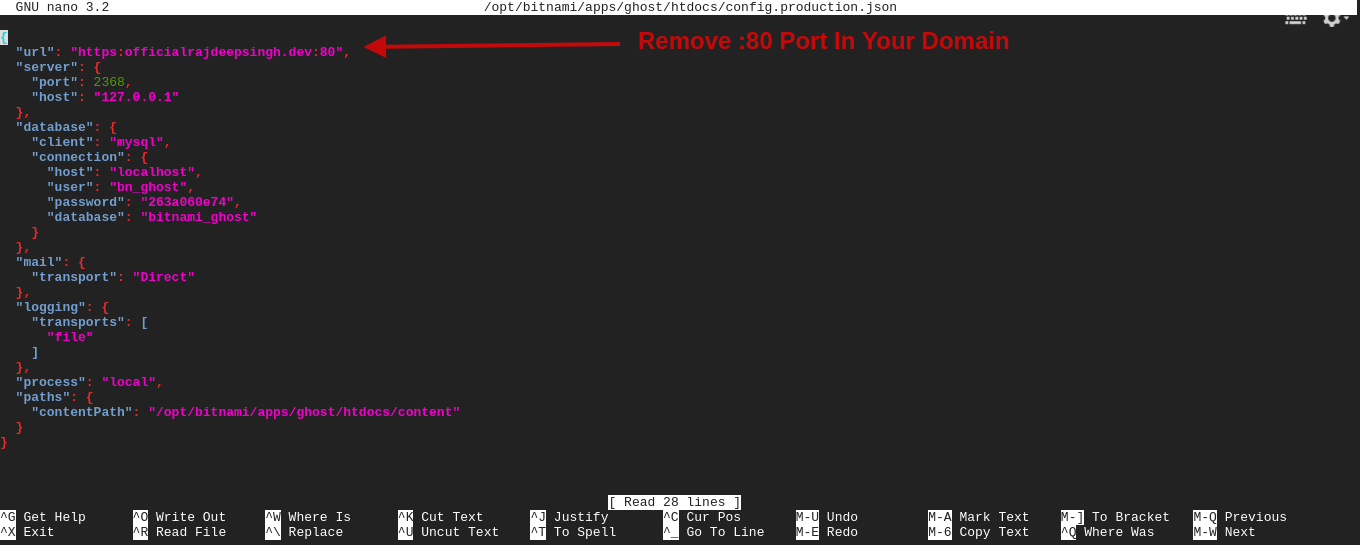
Remove only :80 inside your domain Url field.
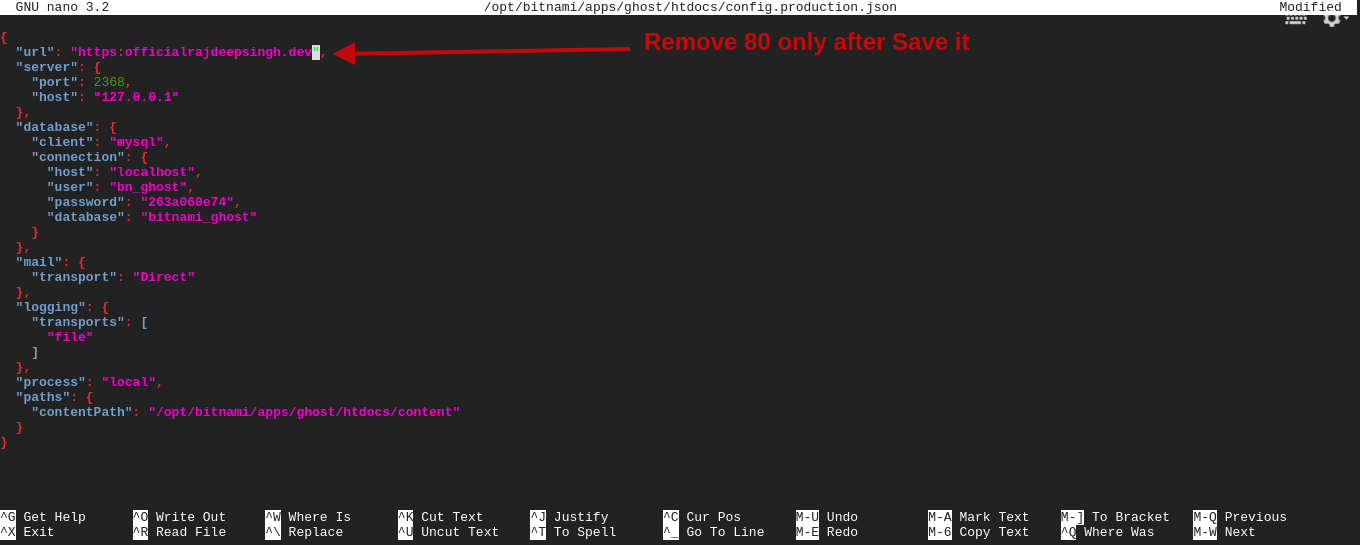
Remove :80 port save your file with keyboard shortcut
- Firstly Ctrl + O
- Click Enter
- Exit Ctrl+ X
After You File Save And Restart Your Ghost
sudo /opt/bitnami/ctlscript.sh restart ghost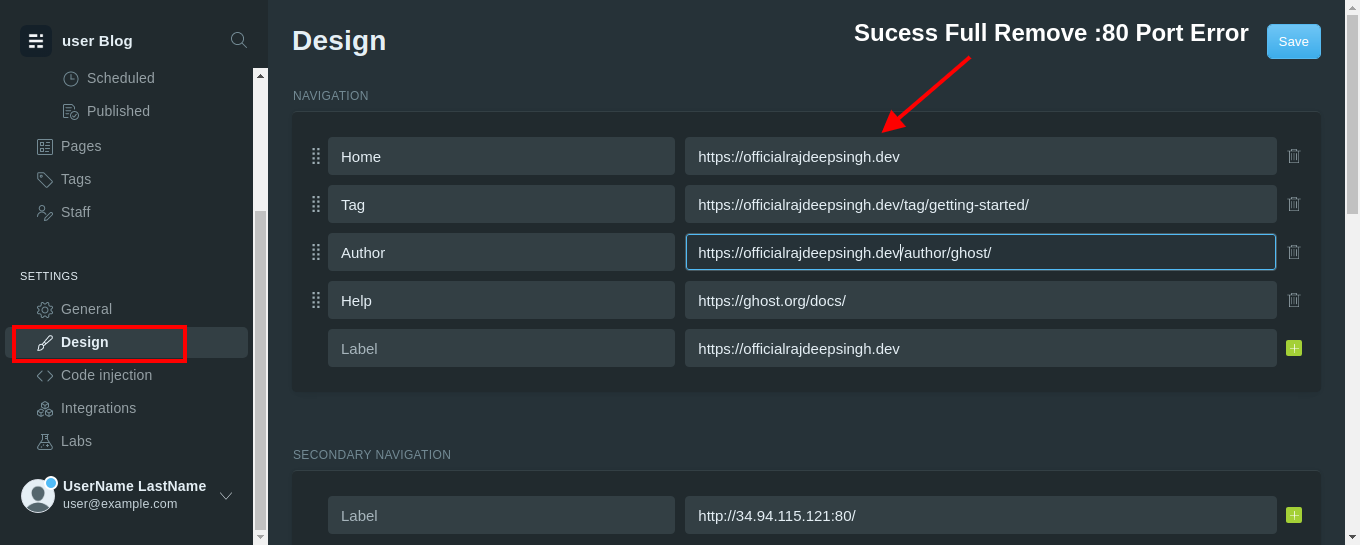
After You success full remove 80 port error in your Ghost cms and your cms look like.
References
Read More About 80 Port Error On Bitnami Community.
https://community.bitnami.com/t/80-in-end-of-domain-name/68342